Copy library / Guides / Grok Bot
A scannable digital business card with Grok Bot Pages
# 用 Grok Bot Pages 做可扫码的电子名片

Source: https://x.com/Michael_Fenech_/status/2116506975681081523

Author: Michael_Fenech_

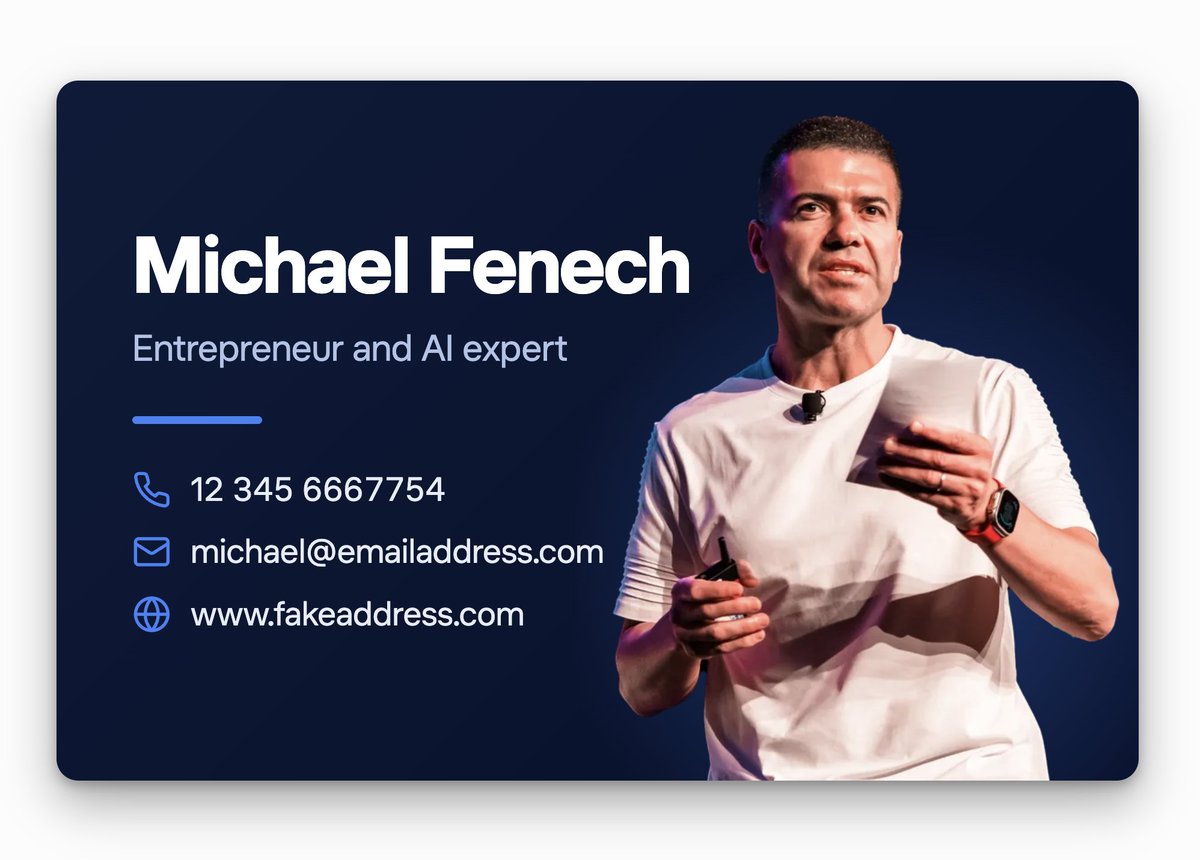
作者用 Grok Bot Pages 做了带照片、姓名和联系方式的电子名片,并生成二维码和手机锁屏版。帖子附完整提示词:先收集资料、用脚本处理照片、按名片比例搭页面、发布后生成二维码并解码校验链接。
- What it does
- The author had Grok Bot build a business card as a Grok Bot Page with photo, name and contact details, plus a QR code and a lock-screen version. The full prompt covers collecting details, scripting the photo, building the card, then generating and decoding the QR to verify the link.
- Scenarios
- Code & ship
- What the source covers
- Author & original linkYes
- What it doesYes
- Verbatim source excerptYes
- Screenshots / mediaYes
- Steps / chaptersNot in source
- Verbatim prompt / configNot in source
- Results / numbersNot in source
- Risk notesYes
- Related entriesYes
— means the source doesn't say; we don't fill it in.
- In the author's words
Grok Bot just built me a digital business card people can scan straight from my phone.
It uses Grok Bot Pages to create your card with your photo, name and contact details.
It also generates a scannable QR code you can save on your phone to use whenever someone asks for your details.
Here’s the full prompt to create yours, complete with a public link and QR code.
“Build me a digital business card as a Grok Bot Page, plus a QR code that opens it. Work step by step and check each step before moving on.Show full post
1 - Ask me for my details
Ask in one short message, all at once: full name, title, phone number, email, website, a photo of me and colour preference.
For the photo, ask for the original, high-resolution file, at least 1,500 pixels tall, ideally with a transparent background (a cut-out PNG). Chat apps often shrink photos, so ask for the original.
Default colours: dark navy with a blue accent.
Wait for my answers. Don’t invent anything. If something is missing, leave it off rather than using a placeholder.
2 - Prepare the photo
Check its resolution with a script. If it’s under about 1,000 pixels tall, tell me it may look blurry and ask for a bigger file before continuing.
If the background isn’t transparent, remove it or ask me for a cut-out.
Crop from just above the head to about the waist. Resize it to about twice the size it will display at, roughly 800 pixels tall, and save it as a WebP with transparency at quality 80, aiming for under 60,000 characters once base64-encoded.
Encode it to base64 with a script, never by hand. Record its length and MD5 checksum.
3 - Build the Page
Read the canvas skill first.
Make it look like a real physical business card: landscape, 85:55 ratio, rounded corners, soft shadow, centred on the page.
Size: maxWidth "min(900px, max(70vw, 600px), calc(80vh * 85 / 55))", width 100%, so it’s big on desktop and shrinks on a phone.
Left side: name in large bold white, title in a light accent colour, a short accent line, then phone, email and website, each with a Lucide icon (phone, mail, globe) in the accent colour. Phone uses tel:, email uses mailto:, website opens in a new tab.
Right side: the photo, standing on the card’s bottom edge and running off the right edge, with a faint glow behind it.
Background: a dark gradient in my colours. All text scales with the card’s width.
Keep every detail (name, title, phone, email, website, colours) in one list at the top of the code, so each is easy to edit later.
Embed the photo as a data URL inside the Page.
After saving, read the Page back and confirm the embedded photo matches the file’s length and MD5 exactly. If it doesn’t, fix it and check again.
4 - Publish
Give me the Page link, and tell me to turn on public link sharing from the Page’s share menu. Ask me to paste back the public link.
Remind me that anyone with the link can see it, so only include details I’m happy to share publicly.
5 - Create the QR code
Once I’ve sent the public link, use a Python script (qrcode or segno, plus Pillow) to make a 1,200 by 1,200 pixel QR code for it: error correction H, a white margin, dark modules in the card’s main colour.
Put the Grok Bot icon in the centre on a white rounded square, covering no more than 20% of the code’s width.
Also make a phone lock-screen version (1179 by 2556 pixels): card-colour background, the QR code centred on a white rounded panel, with ‘Scan for my card’ in bold white underneath.
Decode both images with a QR reader (zxing-cpp or pyzbar) and confirm they match the link character for character. Only then send them to me.
6 - Hand over
Send me the card link and both QR images.
Remind me to save the QR image to my phone’s favourites, or set the lock-screen version as my wallpaper, so people can scan my phone at events.
Then offer to change anything: colours, layout or details.”@Michael_Fenech_ · · Open on X ↗ The author's post, quoted verbatim and left untranslated.
- Screenshots
Screenshot from the original post - Prompt
The source does not include a prompt you can copy verbatim.
- How to copy
- Read the source: x.com ↗
- Turn the steps/prompts from the source into one message for your Bot
- Run it manually once, then decide the frequency
- Risks and limits
- Reads and writes your mailbox: grant read-only and draft access first, and approve before anything is sent
- Uses a browser or website login: the costliest kind of step, so prefer a connector where one exists
- The author's result may not reproduce for you; the original post is the reference
- Usage estimate
- Estimate with the metal calculator